Connecting/Logging in
Connecting via a terminal
In order to be able to connect to the Hoffman2 Cluster and open graphical user interfaces such as Maya you need to have an SSH-client and an X Window System installed on your computer. Step by step instructions on how to acquire and use these tools are given below for Linux, Mac and Windows operating systems.
All the connections to the cluster are based on the SSH secure protocol that requires authentication. Depending on the operating system that your computer is running, you have several choices for which command line application to use when connecting with the cluster.
Connectiong from Linux
An X Window System server is generally available and running with the default installation (or can be readily installed via the OS package manager). If you are connecting from a Linux box, you can use the standard SSH-client generally installed with the OS and available via any terminal application. Open a terminal window and type the following:
ssh -X login_id@hoffman2.idre.ucla.edu
where login_id is replaced by your cluster user name.
Connecting from a MacOS
On Mac OS X, the X windows system is called XQuartz. Mac OS X 10.5 10.6 and 10.7 installed it by default, but as of 10.8 Apple has dropped dedicated support and directs users to the open source XQuartz page. You can install XQuartz from the OS distribution media or download it from XQuartz page.
MacOS, the operating system running on a Mac computer, comes equipped with a fully functional Termainal application and an SSH-client. The Terminal application can be located using the Spotlight Search or searching the Applications folder in Finder.
Note
To enable indirect GLX and to allow remote visualization on the Hoffman2 Cluster, open the MacOS Termianl application and issue at its command prompt:
defaults write org.macosforge.xquartz.X11 enable_iglx -bool true
Warning
You will need to reboot your machine before being able to open GUI applications on Hoffman2.
Note
You will need to perform the operation above only once
To connect to the Hoffman2 Cluster, open the MacOS Terminal application and issue at its command prompt:
ssh -Y login_id@hoffman2.idre.ucla.edu
where login_id is replaced by your cluster user name.
Connecting from Windows
To connect to the Hoffman2 Cluster from your Windows computer Install one of any of the following free ssh client programs.
Note
Only one of the following options is needed to connect to the cluster via SSH.
- MobaXterm a free X server for Windows with SSH terminal, SFTP and more.
- XMing and Xming fonts provides a X Window System Server for Microsoft to be used in conjunction with GitBash an emulation shell for Windows.
- Cygwin a free Linux-like environment for Windows. To add Cygwin/X server, select the
xinitpackage from the X11 category. - Xshell a commercial option.
Instructions are given for the first two of the options described above.
Instructions for MobaXterm
Download and install the MobaXterm Home Edition, either the Portable or Installer edition will work. To log into the Hoffman2 Cluster open MobaXterm and click on the Session button (the Sessions button is circled in green in MobaXterm application with the Sessions button circled in green.).
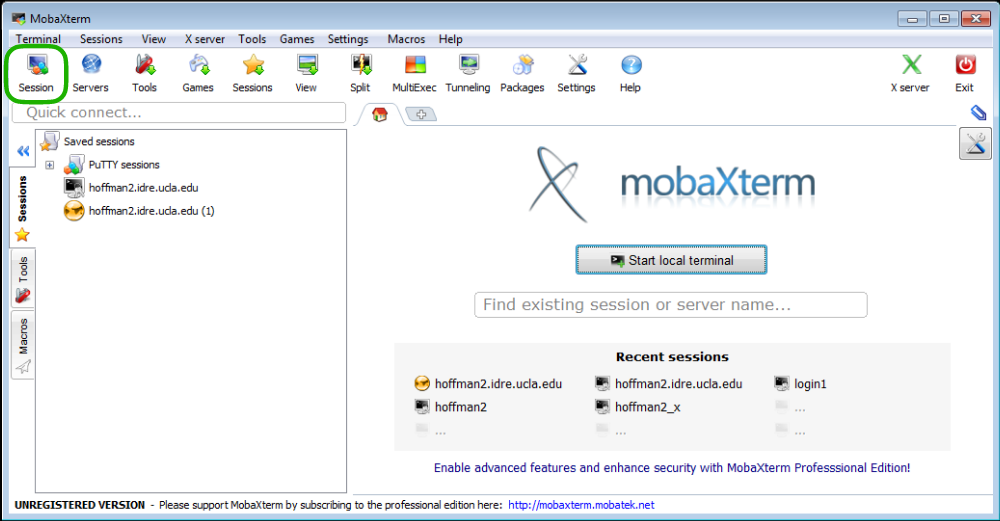
MobaXterm application with the Sessions button circled in green.
A new window will pop-up to allow you to choose a type of session. Choose SSH by clicking on the SSH button (upper left corner) and fill the Remote host field with the Hoffman2 Cluster address, that is:
hoffman2.idre.ucla.edu
save the session by pressing the OK button.
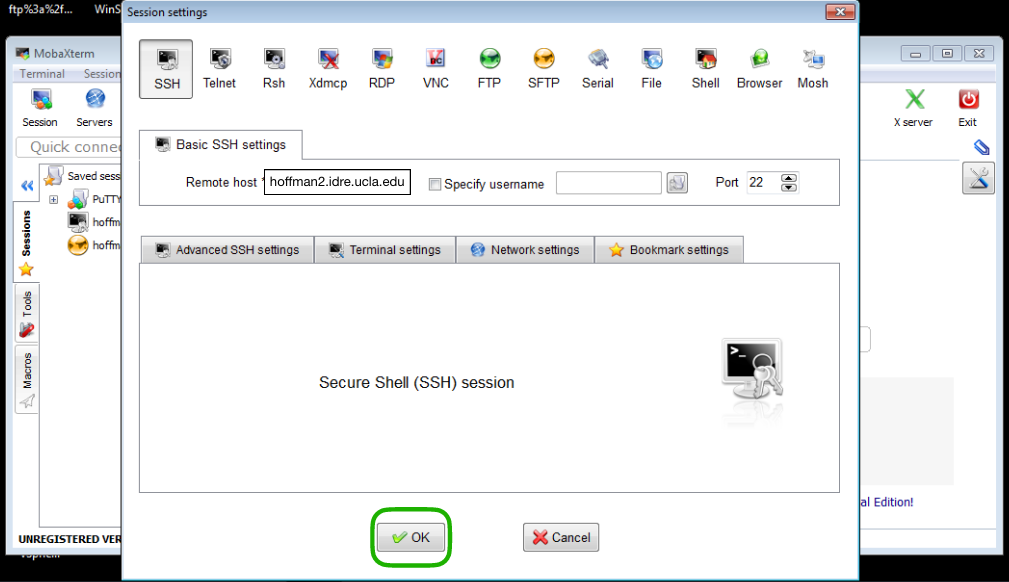
MobaXterm application with the SSH session set for Hoffman2.
You can also create a new session type which you will use to transfer
files back and from the cluster to your local machine, by selecting
the Sessions button again and choosing SFTP as the session type and fill the Remote host field with the Hoffman2 Cluster data transfer node address, that is:
dtn1.hoffman2.idre.ucla.edu
save the session by pressing the OK button.
To access the cluster double click on the save SSH session.
Instructions for XMing and GitBash
Download and install XMing and Xming fonts following the installer instructions. Download and install GitBash following the installer instructions.
Start Xming from the programs, open GibBAsh from the Start Menu, at its command promopt issue:
export DISPLAY-localhost:0
Connect to the Hoffman2 Cluster by typing:
ssh -XY login_id@hoffman2.idre.ucla.edu
where login_id is replaced by your cluster user name.
Connecting via NX clients
NX is a free, secure, compressed protocol for remote X Window System connections for Windows, Linux, Mac OSX, and Solaris. We currently support connecting to the Hoffman2 cluster via the NoMachine client as well as the X2Go client.
NoMachine client
Download NoMachine Client for your operating system
A free NoMachine client is available from NoMachine for Windows, Mac OSX, and most Linux distributions.
- Download NoMachine from the website.
- Use the download link for your operating system (Windows, Mac OSX, or Linux Distributions).
Install
- Once downloaded, double click on the downloaded package file.
- Click the
Run/Installbutton. - When the NoMachine Client Setup Wizard starts, accept all the setup defaults.
Configure
- Open the NoMachine client and continue to the connection page.
- Click on the
Newlink to create a connection to the Hoffman2 Cluster. - Specify the protocol as
SSHand pressContinue. - Provide the host name (nx.hoffman2.idre.ucla.edu).
- Leave the port field set to 22 and press the
Continuebutton. - Select
Use the system loginand press theContinuebutton. - Select
Passwordand press theContinuebutton. - Select
Don’t use a proxyand press theContinuebutton. - Name your connection and press the
Donebutton.
Please notice that if you are planning to suspend and reconnect to an NX session, you will need to repeat the configuration steps described above for the hosts:
nx1.hoffman2.idre.ucla.edu
nx2.hoffman2.idre.ucla.edu
Run
- Open the NoMachine client and continue to the connection page.
- Click on the saved connection that you previously configured.
- Enter your username and password and your NX session with a virtual desktop on the cluster will start.
How to get a terminal window
After you have logged into the Hoffman2 remote desktop, click on the Applications menu. Then select System Tools and Terminal.
Note
To pin the terminal to the panel, right click on the Terminal menu item and select Add this launcher to panel.
How to terminate your NX session
From the gnome desktop, select:
System -> Log Out login_id …
A small window will open. Click the Log Out button.
How to suspend an NX session
Make note of the actual NX node where your session is running (typically NX1 or NX2) to allow for future reconnections. To terminate the NX client on your computer, close the application or close the virtual desktop window.
How to reconnect to a suspended NX session
If you are planning to reconnect to a session, make note of the actual NX node where your session is running (typically NX1 or NX2). Make sure to configure your NX client for the NX node where your session is running. You will need to create a configuration using either nx1.hoffman2.idre.ucla.edu or nx2.hoffman2.idre.ucla.edu. See the Configuration section for more detailed instructions.
Note
Reconnecting to a suspended NX session is not always possible. Lengthy computations should be run as batch jobs. We recommend terminating NX sessions (logout) instead of suspending them.
On fast networks, a preferred alternative to NX is to run an X server on your platform (e.g., X11 packages for linux platforms, XQuartz for mac OSX, XMing and Xming fonts for Windows), and connect to the cluster via a terminal (or via PuTTY on Windows platforms) by setting up X11 forwarding.
X2Go client
Install X2Go client
Follow the installation guide at X2Go site. Download the X2Go client, select the appropriate client for your operating system (Windows, Mac OS, Linux) and the correct version onto your computer.
Double click on the downloaded package, accept the licensing terms, and follow the instruction on the screen.
Note
MacOS users will need to install the XQuartz dependency prior to installing X2Go. It may be obtained on the XQuartz website. You may also encounter a security warning that “x2goclient.app” is from an unidentified developer. Simply right click on the app again and select Open.
Configure the X2Go client to connect to Hoffman2
Launch the application by double clicking on the X2Go Client desktop icon, if one was created, or by searching for the application in your App folder and double clicking on the application file. If prompted by the Windows Firewall, select Allow access so that sshd.exe and other X2Go related programs will be able to run.
Create a new session
From the Session tab in the X2Go client select New session. You can name your session with any name (e.g., x2go@hoffman2). Leave the Path field unchanged and in the Host field enter:
x2go.hoffman2.idre.ucla.edu
Leave the other fields unchanged and choose the Session type to be either the default KDE or GNOME. Save the new session by pressing the OK button.
You can also create sessions for the specific nodes x2go1 and x2go2 if you will need to reconnect to a suspended session. However, we strongly suggest you start new sessions by using the session associated with the x2go.hoffman2.idre.ucla.edu address. Sessions on the x2go1 and x2go2 nodes can be created by using in the “Host” field respectively:
x2go1.hoffman2.idre.ucla.edu
x2go2.hoffman2.idre.ucla.edu
Name the sessions accordingly (for example: x2go1@hoffman2, x2go2@hoffman2).
Start the X2Go client
To connect to the Hoffman2 cluster open the X2Go client, double click on an already created session, and enter your Hoffman2 username and password. The first time you connect, you will be prompted to trust the host key. Do so by pressing the Yes button. On Windows, a few more firewalls will pop up and you will have to allow access to the X2Go Client and associated programs.
You should now be connected to a remote desktop on the Hoffman2 cluster.